

Keyboard Send
The Keyboard Send module creates a way to simulate keypresses as if you were typing into a different application other than RoboRealm. This method provides a way to integrate the results processed by RoboRealm into other applications without requiring any custom integration between the two applications.Similar to the Mouse module this module accepts a user specified variable that contains keys to be set to another application. This is unlike the Keyboard module that instead does the opposite by reading keystrokes.
This module can be used as a simplistic way to control other applications when used in conjunction with the Screen Capture module.
WARNING - if you cannot get this module to work you many not have sufficient permissions to allow for one application to send key strokes to another. You can try to run RoboRealm as Administrator by right clicking on RoboRealm.exe and selecting "Run As Administrator" which may solve this issue.
Interface
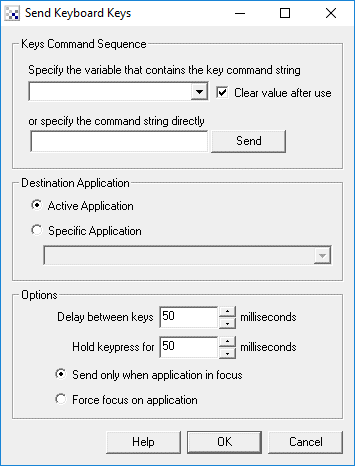
Instructions
1. Variable - Specify the variable that will contain the keystroke commands that will be sent to the application. Note that this variable can be programmatically created using the VBScript module, the Set Variable module, the API, etc.
2. Clear on use - Select this checkbox if after the command is sent the variable's value should be cleared. If the value is not cleared the variable contents will continuously be sent to the application.
3. Direct - To test sending keys to the selected application type in the key command text and press Send. This will send the keys to the specified application after forcing the focus to that application (or desktop). This is a convienient way to determine what commands the variable might use to cause certain actions to happen.
4. Active Application - Select if the key strokes should be sent to whatever the currently focused application is.
5. Specific Application - Select if you only want to send the keystrokes to a specific application seen in the dropdown list. If your program is not already running, close this GUI by pressing OK, start you application and then double click/edit this module again. Your application's name should appear in the dropdown.
6. Send when in focus - Select if you only want the keys to be sent when the specified application is in focus. In this mode RoboRealm will not send out keys until it realizes the application that you specified currently has the keyboard focus. This allows you to retain control of your desktop and only start the automated keyboard stokes when focused on a specific application.
7. Force Focus - Select if you want to ensure that RoboRealm forces the desired application to the foreground and give it focus. RoboRealm will then immediately start sending the keystrokes to that application. If the application loses focus, RoboRealm will once again force the focus back onto the application. This mode is great to ensure only one application is in focus at a time but can become confusing when focus is needed elsewhere. If you use this mode you will have to terminate the specified application in order to stop RoboRealm from forcing focus back to that application in order to make any changes to RoboRealm.
Command String
The variable content or direct command string is a sequence of keystrokes that are send to the specified application. Because many keystrokes cannot be typed as text the command string has many embedded commands that can be used to enter in a particular character. This list is very similar to the SendKeys functionality embedded within Microsoft with a couple of additions around keystroke timing.
The following text should appear in { }'s in order to type that character into the selected application.
| Command | Meaning |
| {DELAY 100} | Causes a 100ms delay and then continues |
| {HOLD 100} | Causes each key to be help down for 100ms |
| {SPEED 100} | Causes a 100ms delay between typing in each character |
| {FOCUS Notepad} | Sets the focus to the specified application. Useful to switch keypresses to another application. Note that you only need to include one unique word that appears in the title of the application to switch to it. It is not necessary to type in the full title. |
| {BEEP 477 250} | Beeps with a tone of 477Hz for 250ms. |
In order to simulate key presses that have no characters the following commands can be used:
| Command | Key |
| {SHIFT} | + |
| {CTRL} | ^ |
| {ALT} | % |
| {WINDOWS} | @ |
Naturally with these keys being redefined, if you need to type a plus and mean just the character '+' then you would need to use the table below to lookup its sequence which is {ADD} or {+}.
You can also group a couple of characters together after a modifier key seen above. For example, +(abcd) would translate to ABCD as the '(' and ')' are grouping characters that will in this case cause all letters to be typed while the SHIFT key is pressed.
To specify more than one keystroke simply include the number of times the key is to be typed after the key. For example, {LEFT 10} means press the LEFT CURSOR KEY 10 times. {a 5} would produce "aaaaa".
| Letters | Meaning |
| {AT} | @ |
| {CARET} | ^ |
| {LEFTBRACE} | { |
| {LEFTPAREN} | ( |
| {PERCENT} | % |
| {PLUS} | + |
| {RIGHTBRACE} | } |
| {RIGHTPAREN} | ) |
| {TILDE} | ~ |
| {ADD} | + |
| {MULTIPLY} | * |
| {DIVIDE} | \ |
| {UP} | CURSOR UP |
| {LEFT} | LEFT CURSOR |
| {RIGHT} | CURSOR RIGHT |
| {DOWN} | DOWN |
| {BACKSPACE} | BACKSPACE |
| {BKSP} | BACKSPACE |
| {BREAK} | |
| {BS} | BACKSPACE |
| {CAPSLOCK} | CAPS LOCK |
| {CLEAR} | CLEAR |
| {DECIMAL} | DECIMAL |
| {DEL} | DELETE |
| {DELETE} | DELETE |
| {END} | END |
| {ENTER} | RETURN |
| {ESC} | ESCAPE |
| {ESCAPE} | ESCAPE |
| {F1} | F1 |
| {F10} | F10 |
| {F11} | F11 |
| {F12} | F12 |
| {F13} | F13 |
| {F14} | F14 |
| {F15} | F15 |
| {F16} | F16 |
| {F2} | F2 |
| {F3} | F3 |
| {F4} | F4 |
| {F5} | F5 |
| {F6} | F6 |
| {F7} | F7 |
| {F8} | F8 |
| {F9} | F9 |
| {HELP} | HELP |
| {HOME} | HOME |
| {INS} | INSERT |
| {LWIN} | LEFT WINDOWS KEY |
| {NUMLOCK} | NUMLOCK |
| {NUMPAD0} | NUMPAD0 |
| {NUMPAD1} | NUMPAD1 |
| {NUMPAD2} | NUMPAD2 |
| {NUMPAD3} | NUMPAD3 |
| {NUMPAD4} | NUMPAD4 |
| {NUMPAD5} | NUMPAD5 |
| {NUMPAD6} | NUMPAD6 |
| {NUMPAD7} | NUMPAD7 |
| {NUMPAD8} | NUMPAD8 |
| {NUMPAD9} | NUMPAD9 |
| {PGDN} | PAGE DOWN |
| {PGUP} | PAGE UP |
| {PRTSC} | PRINT SCREEN |
| {RWIN} | RIGHT WINDOWS KEY |
| {SCROLL} | SCROLL |
| {SNAPSHOT} | SNAPSHOT |
| {SUBTRACT} | SUBTRACT |
| {TAB} | TAB |
| {WIN} | LEFT WINDOWS KEY |
Example
{DELAY 100}@rnotepad~hello world%ha - Waits for 100ms, then invodes Win-r or the Run Dialog, types in 'notepad' followed by enter which starts that application, types in 'hello world' into notepad, invokes the Help menu using ALT-h and then selects the About menu item using the letter 'a'.
{DELAY 100}
See Also
Mouse
Screen Capture
| New Post |
| Keyboard_Send Related Forum Posts | Last post | Posts | Views |
|
Keystoke
Hi everyone , Thanks for reading my post. I have got full edition of roborealm, i have got roboreal... |
11 year | 1 | 3058 |
|
Keyboard send/read bug?
Hello. I am currently running the trial version of RR and having a problem with the keyboard send... |
12 year | 3 | 3108 |

 VBScript to Keyboard Send
I am trying to make a usb missile launcher follow a red blob and then shoot it when it centers on it. (see attached) I am using... |
14 year | 6 | 6688 |
|
Joystick Values
I was wondering if there was any way to set a variable as a joystick value. I know it is possible to read input from... |
15 year | 2 | 4857 |
|
Controlling anoteher pc via USB
Hello, i am looking for a way to control another pc via USB, a bit like the pc with roborealm was a USB keyboard.... |
16 year | 2 | 5239 |
|
Key Send
How does your key send work? Thanks, Sam R.... |
16 year | 4 | 5496 |
|
Keyboad send
Hello, I´m sending caps lock. But how can i send it only once? At the moment it is going on and off,... |
17 year | 2 | 4555 |