RoboRealm Server API
The RoboRealm Server API specifies a socket based communication protocol that can be used to remote control
the RoboRealm Application. This API allows you to use your own program to command RoboRealm to load/save
image, load/save programs, get/put images and perform any image analysis processing as you would using
the RoboRealm application.
The RoboRealm API is different than the RoboRealm Plugins as the plugins
are used to add new image processing modules into RoboRealm for use in any application/project. They also
guarantee that each frame is processed by the plugin before execution is passed back to the image
processing pipeline. The API is used for external applications to query the data within RoboRealm and/or
manage the RoboRealm application remotely.
The RoboRealm API is used for situations where you have a main robot control program that is the central
processor for all robot functions and you need to interface vision processing into parts of your program
when needed. You can use the API commands to execute a sequence of image processing instructions which
then return the results to your robot program. Your program would then continue based on those results
and NOT need to continuously poll the RoboRealm Server for updates. For example, while your robot is
using motor encoders to move to a known position vision processing is not needed. Once the robot reaches
the desired destination the main controller program can active RoboRealm to run an image processing
program to visually sense the environment. Once a desired object is detected control can be passed
back to your program to continue the mission.
The RoboRealm Server enabled/disabled from the Options dialog (click on the Options button from the main
RoboRealm dialog window). For security reasons the RoboRealm Server is OFF by default. Clicking on the checkbox will
active the socket listener and set RoboRealm ready to accept remote commands.
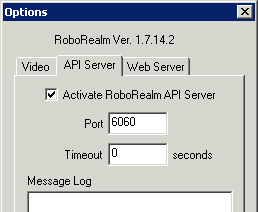
The API communicates to RoboRealm over network sockets. This means that RoboRealm can be remote controlled
from a different machine located on your network. Note that this assumes that RoboRealm is already
running as the API has no way of starting RoboRealm on a different machine than where the API commands
are being executed. In this case you will want to place a link to RoboRealm in your windows "startup" folder.
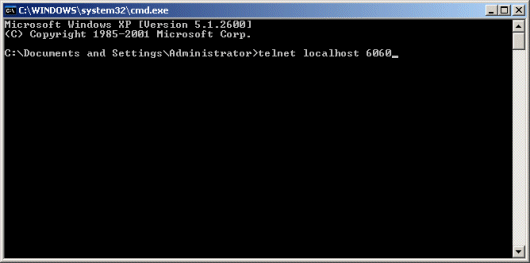
Once you have started the RoboRealm Server (by clicking on the checkbox in the options dialog) you can command
RoboRealm from any socket based program given the specific commands. For example, you could execute
the following command from the windows command console to load an image into RoboRealm.
telnet localhost 6060
<request>
<load_image>
<filename>c:\remo.gif</filename>
</load_image>
</request>
Note the usage of the "telnet" program which is a generic network connection program. The first line sets up the
telnet program with the correct hostname and port number (RoboRealm Server runs on port 6060). The second
line is the XML command string that is interpreted by RoboRealm and executed accordingly. Note that the
filename specification is relative to the machine that RoboRealm is running on and
may be different that specified above. You can execute this sequence from any machine in your network
AND from any operating system (including Linux) that has the telnet program installed.
The above text is a quick example of how the API can be used directly. We provide a complete source code
examples written in C++, Java, C# (CSharp), VB.Net, Visual Basic, Matlab, LabView, Python, Lisp and WScript that implements the API socket communication. You
can include this source into your own robot control program to add in the full vision processing
capabilities of RoboRealm.
When invoking RoboRealm.exe from your own application you have serveral command line options that you can
use to force RoboRealm's behaviour when it runs.
c:\RoboRealm\bin\RoboRealm.exe -api_port 1234 -new_instance -instance_2 -ini_file c:\temp\RoboRealm.ini -faceless
api_port - If you wish to run multiple copies of RoboRealm and use the API in each separate instance you will
have to run RoboRealm with different API port numbers. Using -api_port 1234 will run a copy of RoboRealm using the
API port 1234 instead of whatever is saved as the last
configuration or the default 6060. Specifying the -api_port will also force the API server to execute regardless
of the settings saved within RoboRealm's configuration. To force a new instance of RoboRealm each time you can use.
This option can also be found in Options Button->API Tab in the GUI.
new_instance - Forces another RoboRealm instance to appear as apposed to defaulting to the already
running instance. This option can also be found in Options Button->Startup Tab in the GUI.
instance_2 - Forces RoboRealm to run using the configuration of the second instance of RoboRealm. Whenever RoboRealm
is run with more than one instance of the application the settings for that instance are seperate from the first. This
allows successive instances to run using the same settings as they did the last time they ran. Using the -instance_X
command will allow you to pick which instance to run regardless of how many actual instances of RoboRealm you currently
have running. Note that -instance_1, -instance_2, ... -instance_16 are valid parameters but only one is valid at a time.
ini_file - The ini_file parameter forces RoboRealm to
read all configuration that is normally stored in the Registry from an ini file. This can be useful if you
want to copy the configuration of RoboRealm and move it to another machine without having to reconfigure
the application. Note that the instance_X parameter still applies in this case as each instance is also stored
in the single ini file.
faceless - Forces RoboRealm to operate in faceless (without GUI) mode. Note that this mode is only valid
for the commercially licensed version of RoboRealm.
Download Examples of RoboRealm API
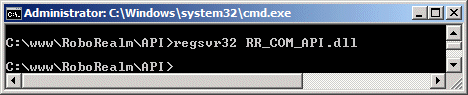
Note that the examples currently include C/C++, Python, COM (Visual Basic, WScript) examples. To use the COM
examples (Visual Basic or WScript) you must first register the COM object using 'regsvr32 \path\API\RR_COM_API.dll'
where path is the path you unzipped the API.zip file. To use Python you
must have downloaded a Python interpreter.
Special attention to the execute function is needed as it is one of the most powerful but most generic function
that accepts an XML image processing sequence string. The string will contain data that can be modified prior to sending
the command sequence to be executed (using sprintf in C/C++). For example, you may want to change the filename
in the example above as needed. The main difficulty of this routine is in creating the appropriate RoboRealm based XML string
needed to accomplish a specific task. The easiest way to create these command strings is to run RoboRealm,
configure the image processing pipeline using the provided GUI controls, save the program into a .robo
file and then cut and paste the contents of the .robo file into the execute parameter. I.e. the execute
function uses the same XML format as the .robo file. To determine the appropriate values for each of the
modules you can use the same procedure and check what parameter values have changed.
There are API routines to manipulate variables and parameters. Variables are containers of information that are
global within RoboRealm and can be accessed by scripting functions like the VBScript module using GetVariable
function calls. Parameters, are similar to variables but they specify a specific value within one of the GUI
interfaces and are localized to that module. Thus if you want to set a value that you use in an IF statement or
in the VBScript module use variables, whereas if you want to change the static number or text within the GUI
interface of a module use parameters.
Note that some GUI modules allow for the [variable] format to be used
in place of a number/text. In that case setting a variable will modify a GUI parameter too.
The following XML messages are direct examples that provide management functions outside of the image processing
specifications found in the .robo files. These API routines mimic the buttons on the main RoboRealm dialog. Again, note
that these are the raw requests that would be embedded in some network capable language. As mentioned above
we current have a C++ implementation of these requests with more languages to come.
Getting the current image dimensions from RoboRealm
This request will return the dimensions of the source, processed or a specified marked image.
Note that these dimensions can be different from the camera dimensions due to
usage of modules like scaling or cropping. To get the current camera width and height see get_camera_format below.
<request>
<get_dimension>IMAGE_NAME</get_dimension>
</request>
IMAGE_NAME - can be one of source, processed, or a marker name defined
in the image processing pipeline.
<response>
<width>IMAGE_WIDTH</width>
<height>IMAGE_HEIGHT</height>
</response>
Reading an image from RoboRealm
This request will return the currently processed image as seen in RoboRealm as RGB triplet data.
<request>
<get_image>
<name>IMAGE_NAME</name>
<format>RGB|GRAY|RED|GREEN|BLUE|BINARY</format>
</get_image>
</request>
IMAGE_NAME - can be one of source, processed, or a marker name defined
in the image processing pipeline.
FORMAT
RGB - Image data is 3 byte RGB triplet. (largest size)
GRAY - Image data is a single byte gray level ((R+G+B)/3).
RED - Image data is the single byte red channel.
GREEN - Image data is the single byte green channel.
BLUE - Image data is the single byte blue channel.
BINARY - Image data per byte is 8 pixel binary. (smallest size)
<response>
<length>IMAGE_LENGTH</length>
<width>IMAGE_WIDTH</width>
<height>IMAGE_HEIGHT</height>
</response>
RGB triplet data ...
Note that the image data follows this response of length IMAGE_LENGTH.
Writing an image to RoboRealm
This request allows you to update the current image in RoboRealm with the provided image. Note that
if the camera is enabled the source image will quickly be overwritten by the next video frame. You
can also use this routine to set marker images (images just kept in memory) that are used by some modules.
<request>
<set_image>
<source>IMAGE_NAME</source>
<width>IMAGE_WIDTH</width>
<height>IMAGE_HEIGHT</height>
<format>RGB|GRAY|RED|GREEN|BLUE|BINARY</format>
<wait>1</wait>
</set_image>
</request>
RGB triplet data
OR
<request>
<set_image>
<compressed></compressed>
<source>IMAGE_NAME</source>
<size>SIZE</size>
<wait>1</wait>
</set_image>
</request>
compressed GIF, JPEG, etc. data depending on format setting...
compressed - indicates the data represents a GIF, JPEG, etc. image
SIZE - number of bytes in data stream, required for compressed data, optional for RGB
IMAGE_NAME - can either be source or a new/existing marker name
FORMAT (non-compressed)
RGB - Image data is 3 byte RGB triplet. (largest size)
GRAY - Image data is a single byte gray level
RED - Image data is the single byte red channel.
GREEN - Image data is the single byte green channel.
BLUE - Image data is the single byte blue channel.
BINARY - Image data per byte is 8 pixel binary. (smallest size)
WAIT - causes RoboRealm to finish processing the image before
returning the set_image result. Thus, you can perform a
get_variable after this routine and be guaranteed that
the value was processed from the set_image call.
<response>ok</response>
OR
<response>timeout</response>
Reading a variable from RoboRealm
This request will read a variable from RoboRealm and return its value. The variable can be set
by other API requests or RoboRealm modules.
<request>
<get_variable>VAR_NAME</get_variable>
</request>
VAR_NAME - the name of the variable to query
<response><VAR_NAME>VAR_VALUE</VAR_NAME></response>
Reading several variables from RoboRealm
This request is exactly like the request above with the exception that it will read
in several variables in one request which is more efficient if you want to read
more than one variable at a time.
<request>
<get_variables>VAR_1_NAME, VAR_2_NAME, etc.</get_variables>
</request>
VAR_X_NAME - the name of a variable to query
<response>
<VAR_1_NAME>VAR_1_VALUE</VAR_1_NAME>
<VAR_2_NAME>VAR_2_VALUE</VAR_2_NAME>
<VAR_3_NAME>VAR_3_VALUE</VAR_3_NAME>
</response>
Reading all variables from RoboRealm
This request is exactly like the request above with the exception that it will read
in all variables in one request.
<request>
<get_all_variables></get_all_variables>
</request>
<response>
<VAR_1_NAME>VAR_1_VALUE</VAR_1_NAME>
<VAR_2_NAME>VAR_2_VALUE</VAR_2_NAME>
<VAR_3_NAME>VAR_3_VALUE</VAR_3_NAME>
</response>
Writing a variable to RoboRealm
This request will set a variable into RoboRealm for use by other modules.
<request>
<set_variable>
<name>VAR_NAME</name>
<value>VAR_VALUE</value>
</set_variable>
</request>
VAR_NAME - the name of the variable to set
VAR_VALUE - the value of the variable
<response>ok</response>
Writing multiple variables to RoboRealm
This request is exactly the same as the request above with the exception that it will
set multiple variables in RoboRealm.
<request>
<set_variables>
<variable>
<name>VAR_1_NAME</name>
<value>VAR_1_VALUE</value>
</variable>
<variable>
<name>VAR_2_NAME</name>
<value>VAR_2_VALUE</value>
</variable>
<variable>
<name>VAR_3_NAME</name>
<value>VAR_3_VALUE</value>
</variable>
</set_variables>
</request>
VAR_X_NAME - the name of one of the variable to set
VAR_X_VALUE - the value of one of the variable to set
<response>ok</response>
Deleting a variable to RoboRealm
This request will delete a variable from RoboRealm.
<request>
<delete_variable>VAR_NAME</delete_variable>
</request>
VAR_NAME - the name of the variable to delete
<response>ok</response>
Executing a custom image processing sequence
This request allows you to specify a custom image processing sequence that
RoboRealm will execute. You can create the appropriate string by using the
RoboRealm GUI application, save the configuration in a .robo file and then paste
its contents into the parameter for this request.
<request>
<execute>XML_STRING</execute>
</request>
XML_STRING - the image processing sequence to execute
<response>ok</response>
Loading a .robo program
This request will load a .robo processing pipeline file into RoboRealm. Note that the
file needs to exist on the machine running RoboRealm. This is similar to pressing the 'open' button in the
main RoboRealm dialog.
<request>
<load_program>FILENAME</load_program>
</request>
FILENAME - the name of the RoboRealm filename to load and execute
<response>ok</response>
Saving a .robo program
This request will save a .robo processing pipeline file from RoboRealm. This is similar to pressing the 'save' button in the
main RoboRealm dialog.
<request>
<save_program>FILENAME</save_program>
</request>
FILENAME - the name of the RoboRealm filename to save
<response>ok</response>
Getting the current .robo program
This request will return the current loaded .robo pipeline as XML from RoboRealm.
<request>
<get_program></get_program>
</request>
<response>XML_STRING</response>
Changing a module parameter
This request allows you to modify a module parameter as seen in the
GUI interface. In some modules you can replace the static number/text with
a [variable] specification but not all GUI number/text items support this
format. Instead you can use this API call to directly change a parameter
within that interface.
<request>
<set_parameter>
<module>MODULE_NAME</module>
<module_number>MODULE_INDEX</module_number>
<name>PARAM_NAME</name>
<value>PARAM_VALUE</value>
</set_parameter>
</request>
MODULE_NAME - the name of the module to modify (eg. Color_Filter)
MODULE_INDEX - which module to modify in case you have
more than one module of the same name (i.e. two Color_Filter modules).
PARAM_NAME - the parameter to modify as seen in the XML string of the robofile (eg. min_distance)
PARAM_VALUE - what to change the parameter value to (eg. 65)
<response>ok</response>
Reading a module parameter
This request allows you to read a module parameter as seen in the
GUI interface.
<request>
<set_parameter>
<module>MODULE_NAME</module>
<module_number>MODULE_INDEX</module_number>
<name>PARAM_NAME</name>
</set_parameter>
</request>
MODULE_NAME - the name of the module to read (eg. Color_Filter)
MODULE_INDEX - which module to read in case you have
more than one module of the same name (i.e. two Color_Filter modules).
PARAM_NAME - the parameter to read as seen in the XML string of the robofile (eg. min_distance)
<response>
<PARAM_NAME>PARAM_VALUE</PARAM_NAME>
</response>
Deleting a module
This request allows you to delete a particular module in the pipline. The module
to delete can be referred to by a name and number.
The number is optional as not all pipelines will contain more than one occurance of the
same module.
<request>
<delete_module>
<module>MODULE_NAME</module>
<module_number>MODULE_NUMBER</module_number>
</delete_module>
</request>
MODULE_NAME - the name of the module to delete (eg RGB_FILTER)
MODULE_NUMBER - which module to delete in case you have
more than one module of the same name (i.e. two Color_Filter modules).
<response>ok</response>
Toggle disabling of a module
This request allows you to toggle if a particular module in the pipline should
be disabled or enabled. The module
to disable is referred to by a name and number.
The number is optional as not all pipelines will contain more than one occurance of the
same module.
<request>
<toggle_module>
<module_name>MODULE_NAME</module_name>
<module_number>MODULE_NUMBER</module_number>
</toggle_module>
</request>
MODULE_NAME - the name of the module to toggle to disabled or enabled (eg RGB_FILTER)
MODULE_NUMBER - which module to delete in case you have
more than one module of the same name (i.e. two Color_Filter modules).
<response>ok</response>
Loading an image into RoboRealm
This request will load an image into RoboRealm. Note that the
image needs to exist on the machine running RoboRealm. Valid image
formats include gif, pgm, ppm, jpg, png, bmp, and tiff. This is
similar to pressing the 'load image' button in the main RoboRealm
dialog.
<request>
<load_image>
<filename>FILENAME</filename>
<name>NAME</name>
</load_image>
</request>
FILENAME - the image filename to load
NAME - the name the image is identified as. Can be source or a marker name.
<response>ok</response>
Saving an image from RoboRealm
This request will save an image from RoboRealm to disk. Note that the
image filename is relative to the machine running RoboRealm. Valid
image formats include gif, pgm, ppm, jpg, png, bmp, and tiff. This is
similar to pressing the 'save image' button in the main RoboRealm
dialog.
<request>
<save_image>
<filename>FILENAME</filename>
<name>NAME</name>
</save_image>
</request>
FILENAME - the image filename to save the image to (may or may not exist).
NAME - the name the image is identified as. Can be source, processed or a marker name.
<response>ok</response>
Setting the active camera
Sets the current camera driver. This can be used to change the current viewing camera
to another camera installed on the same machine. Note that this is a small delay
when switching between cameras. The specified name needs only to partially match
the camera driver name seen in the dropdown picklist in the RoboRealm options dialog.
For example, specifying "Logitech" will select any installed Logitech camera including
"Logitech QuickCam PTZ". This is similar to selecting a different camera driver from
the options dialog window.
<request>
<set_camera>DRIVER_NAME</set_camera>
</request>
DRIVER_NAME - the camera driver name that you want to switch processing to OR
can be on, off in order to stop the active camera.
<response>ok</response>
Getting the currently active camera driver name
Returns back the current camera driver. This can be used to indicate which
camera is currently being used in RoboRealm.
<request>
<get_camera></get_camera>
</request>
<response>
<get_camera>Logitech QuickCam PTZ</get_camera>
</response>
Setting the active camera's image format
Sets the format options for the current camera driver. This can be used to change the
image size (width & height), frames per second rate (fps) and compression used
by current camera. These values can be
set manually using the Driver interface GUI accessed by clicking on the Options button -> Video Tab -> Video Format button.
Note that when switching capture sizes there will be a delay while the camera
adjusts its parameters.
<request>
<set_camera_format>
<width>WIDTH</width>
<height>HEIGHT</height>
<frame_rate>FPS</frame_rate>
<compression>COMPRESSION</compression>
</set_camera_format>
</request>
WIDTH - the width of the image to capture (eg. 320)
HEIGHT - the height of the image to capture (eg. 240)
FPS - the number of frames per second to capture (eg. 30)
COMPRESSION - the data format used to transmit the image from the camera to the PC (eg. RGB or I420, etc)
<response>ok</response>
Getting the active camera's format
Returns the format settings for the current camera.
<request>
<get_camera_format></get_camera_format>
</request>
<response>
<width>320</width>
<height>240</height>
<frame_rate>30</frame_rate>
<compression>RGB</compression>
</response>
Setting the active camera's image capture properties
Sets the properties for the current camera using DirectX. Note that not all
properties are supported by each camera. The list below is exhaustive and may not
represent properties that you can set on your camera. These values are can be
set manually using the Driver interface GUI accessed by clicking on the Options button -> Video Tab -> Video Capture button.
Below are indicated all possible values. You can reduce this list to just those values
you wish to set and need not specify all possible values for each request.
Note that several properties also allow an automatic (auto) mode to be enabled or disabled.
If enabled the manual value is ignored until automatic mode is disabled.
<request>
<set_camera_properties>
<brightness>
<value>NUMBER_VALUE</value>
</brightness>
<contrast>
<value>NUMBER_VALUE</value>
</contrast>
<gain>
<value>NUMBER_VALUE</value>
<auto>1 or 0</auto>
</gain>
<exposure>
<value>NUMBER_VALUE</value>
<auto>1 or 0</auto>
</exposure>
<sharpness>
<value>NUMBER_VALUE</value>
</sharpness>
<saturation>
<value>NUMBER_VALUE</value>
</saturation>
<hue>
<value>NUMBER_VALUE</value>
</hue>
<zoom>
<value>NUMBER_VALUE</value>
</zoom>
<iris>
<value>NUMBER_VALUE</value>
<auto>1 or 0</auto>
</iris>
<focus>
<value>NUMBER_VALUE</value>
<auto>1 or 0</auto>
</focus>
<gamma>
<value>NUMBER_VALUE</value>
</gamma>
<pan>
<value>NUMBER_VALUE</value>
</pan>
<tilt>
<value>NUMBER_VALUE</value>
</tilt>
<roll>
<value>NUMBER_VALUE</value>
</roll>
<whitebalance>
<value>NUMBER_VALUE</value>
<auto>1 or 0</auto>
</whitebalance>
<red>
<value>NUMBER_VALUE</value>
</red>
<blue>
<value>NUMBER_VALUE</value>
</blue>
</set_camera_properties>
</request>
NUMBER_VALUE - the value of the specific property that you want to set
<response>ok</response>
Getting the active camera's image capture properties
Gets the properties for the current camera using DirectX. Note that not all
properties are supported by each camera. The returned list will be of those
properties that DirectX reports as being functional. Despite this the list may still
contain properties that do not have any effect on the camera.
Note that you can include only those properties that you wish to query in the
request list. If no properties are specified then all property values are returned.
<request>
<get_camera_properties></get_camera_properties>
</request>
OR a combination of
<request>
<get_camera_properties>
<brightness></brightness>
<contrast></contrast>
<gain></gain>
<exposure></exposure>
<sharpness></sharpness>
<saturation></saturation>
<hue></hue>
<zoom></zoom>
<iris></iris>
<focus></focus>
<gamma></gamma>
<pan></pan>
<tilt></tilt>
<roll></roll>
<whitebalance></whitebalance>
<red></red>
<blue></blue>
</get_camera_properties>
</request>
The response will contain several fields.
VALUE - the current value of the property
MIN - the minimum value the property can be set to
MAX - the maximum value the property can be set to
AUTO - the current setting of the automatic mode (if applicable)
<response>
<brightness>
<value>NUMBER_VALUE</value>
<min>NUMBER_VALUE</min>
<max>NUMBER_VALUE</max>
</brightness>
<contrast>
<value>NUMBER_VALUE</value>
<min>NUMBER_VALUE</min>
<max>NUMBER_VALUE</max>
</contrast>
<gain>
<value>NUMBER_VALUE</value>
<min>NUMBER_VALUE</min>
<max>NUMBER_VALUE</max>
<auto>1 or 0</auto>
</gain>
<exposure>
<value>NUMBER_VALUE</value>
<min>NUMBER_VALUE</min>
<max>NUMBER_VALUE</max>
<auto>1 or 0</auto>
</exposure>
<sharpness>
<value>NUMBER_VALUE</value>
<min>NUMBER_VALUE</min>
<max>NUMBER_VALUE</max>
</sharpness>
<saturation>
<value>NUMBER_VALUE</value>
<min>NUMBER_VALUE</min>
<max>NUMBER_VALUE</max>
</saturation>
<hue>
<value>NUMBER_VALUE</value>
<min>NUMBER_VALUE</min>
<max>NUMBER_VALUE</max>
</hue>
<zoom>
<value>NUMBER_VALUE</value>
<min>NUMBER_VALUE</min>
<max>NUMBER_VALUE</max>
</zoom>
<iris>
<value>NUMBER_VALUE</value>
<min>NUMBER_VALUE</min>
<max>NUMBER_VALUE</max>
<auto>1 or 0</auto>
</iris>
<focus>
<value>NUMBER_VALUE</value>
<min>NUMBER_VALUE</min>
<max>NUMBER_VALUE</max>
<auto>1 or 0</auto>
</focus>
<gamma>
<value>NUMBER_VALUE</value>
<min>NUMBER_VALUE</min>
<max>NUMBER_VALUE</max>
</gamma>
<pan>
<value>NUMBER_VALUE</value>
<min>NUMBER_VALUE</min>
<max>NUMBER_VALUE</max>
</pan>
<tilt>
<value>NUMBER_VALUE</value>
<min>NUMBER_VALUE</min>
<max>NUMBER_VALUE</max>
</tilt>
<roll>
<value>NUMBER_VALUE</value>
<min>NUMBER_VALUE</min>
<max>NUMBER_VALUE</max>
</roll>
<whitebalance>
<value>NUMBER_VALUE</value>
<min>NUMBER_VALUE</min>
<max>NUMBER_VALUE</max>
<auto>1 or 0</auto>
</whitebalance>
<red>
<value>NUMBER_VALUE</value>
<min>NUMBER_VALUE</min>
<max>NUMBER_VALUE</max>
</red>
<blue>
<value>NUMBER_VALUE</value>
<min>NUMBER_VALUE</min>
<max>NUMBER_VALUE</max>
</blue>
</response>
Enable/Disable Processing
This request provides a way to stop processing incoming video. Some image processing
tasks can be very CPU intensive and you may only want to enable processing when
required but otherwise not process any incoming images to release the CPU for other
tasks. The run mode can also be used to processing individual frames or only run
the image processing pipeline for a short period. This is similar to pressing the
"run" button in the main RoboRealm dialog.
<request>
<run>MODE</run>
</request>
MODE - can be toggle, on, off, once, or a number of frames to process
<response>ok</response>
Waiting for RoboRealm
There is often a need to pause your own Robot Controller program to wait for
RoboRealm to complete its task. The easiest way to accomplish this is to wait
on a specific variable that is set to a specific value by RoboRealm. Using the
wait_variable request you can pause execution and then continue when a variable
changes within RoboRealm.
<request>
<wait_variable>
<name>VAR_NAME</name>
<value>VAR_VALUE</value>
<timeout>TIMEOUT</timeout>
</wait_variable>
</request>
VAR_NAME - name of the variable to wait for
VAR_VALUE - the value of that variable which will cancel the wait
TIMEOUT - the maximum time to wait for the variable value to be set
<response>ok</response>
OR
<response><error>Timeout exceeded</error></response>
Waiting for a new image
If you are rapidly grabbing images you will need to wait inbetween each
get_image for a new image to be grabbed from the video camera and processed. The wait_image
request ensures that a new image has been processed and is available to grab. Without this routine
you may be grabbing the same image more than once.
<request>
<wait_image>
<timeout>TIMEOUT</timeout>
</wait_image>
</request>
TIMEOUT - the maximum time to wait for a new image to be captured
<response>ok</response>
Minimizing RoboRealm Interface
The following request minimizes the RoboRealm interface such that it disappears into the task bar.
<request>
<interface>
<command>minimize</command>
</interface>
</request>
<response>ok</response>
Maximizing RoboRealm Interface
The following request maximizes the RoboRealm interface such that it takes up the full screen.
<request>
<interface>
<command>maximize</command>
</interface>
</request>
<response>ok</response>
Resizing the RoboRealm Interface
The following request resizes the RoboRealm interface. Note that you can resize the interface below
the recommended size where the interface can become mostly be unuseable.
<request>
<interface>
<command>resize</command>
<width>100</width>
<height>100</height>
</interface>
</request>
<response>ok</response>
Moving the RoboRealm Interface
The following request moves the RoboRealm interface to a new location. Note that you can move the interface
offscreen such that the user will not see the interface but will still know it is running as shown by the
task bar.
<request>
<interface>
<command>move</command>
<x_position>100</x_position>
<y_position>100</y_position>
</interface>
</request>
<response>ok</response>
Moving and Resizing the RoboRealm Interface
The following request moves and resizes the RoboRealm interface in one command.
<request>
<interface>
<command>position</command>
<x_position>100</x_position>
<y_position>100</y_position>
<width>100</width>
<height>100</height>
</interface>
</request>
<response>ok</response>
Showing and Hiding the RoboRealm Interface (Commercial version only)
The following request will hide the RoboRealm interface
<request>
<interface>
<command>faceless</command>
</interface>
</request>
<response>ok</response>
The following request will show the RoboRealm interface if hidden
<request>
<interface>
<command>display</command>
</interface>
</request>
<response>ok</response>
Quitting RoboRealm API
The following request will terminate the current connection to RoboRealm API
<request>
<quit></quit>
</request>
None
RoboRealm Version Number
This request returns the current version of RoboRealm running. This is a good test
to see if the API is enabled as it is one of the most simplist API calls with the fewest
dependencies on cameras, pipeline, etc.
<request>
<version></version>
</request>
<response>2.0.6.1</response>
Closing RoboRealm
The following request closes RoboRealm in a nice manner. If you are running RoboRealm
on the same machine that your API program is located you can use the "open" routine to
start the RoboRealm process and this close request to terminate the application.
<request>
<close></close>
</request>
<response>ok</response>
Formatting note
Each request message can only process one command. For multiple commands you need to wrap each of
them around a request tag. This is wrong:
<request>
<set_variable>
<name>VAR_NAME</name>
<value>VAR_VALUE</value>
</set_variable>
<set_variable>
<name>VAR_NAME_2</name>
<value>VAR_VALUE_2</value>
</set_variable>
</request>
while this is correct.
<request>
<set_variable>
<name>VAR_NAME</name>
<value>VAR_VALUE</value>
</set_variable>
</request>
<request>
<set_variable>
<name>VAR_NAME_2</name>
<value>VAR_VALUE_2</value>
</set_variable>
</request>
|