

Shape Matching
The Shape Matching module provides a way to match a binary image to a known database of images. The module is used to recognize shapes and provides statistical relationships between the currently viewed object and that stored in the image database. Note that the shape matching is based on actual image shape and NOT on direct pixel matching as done in image template matching. In this way the matches are invariant to shape translation, size and orientation.The module uses a specified folder for training. It expects to see black and white images in that folder that are processed for shape information. (White being the shape, black being the background). Using this database of images, new images fed in from the camera (after being thresholded) will be compared to the known database with resulting similarity being displayed.
The module does NOT adapt to changes in perspective. Thus if your shape is on the floor with your camera pointing outwards, you will probably not get very good matches. You'll need to use the Perspective module to adjust the image such that the shape appears as if the camera was looking right down on the shape. Alternatively, you can snap many images of the shape given perspective distortion which would proide some stability ... but not as reliable as warping the image prior to matching.
Interface
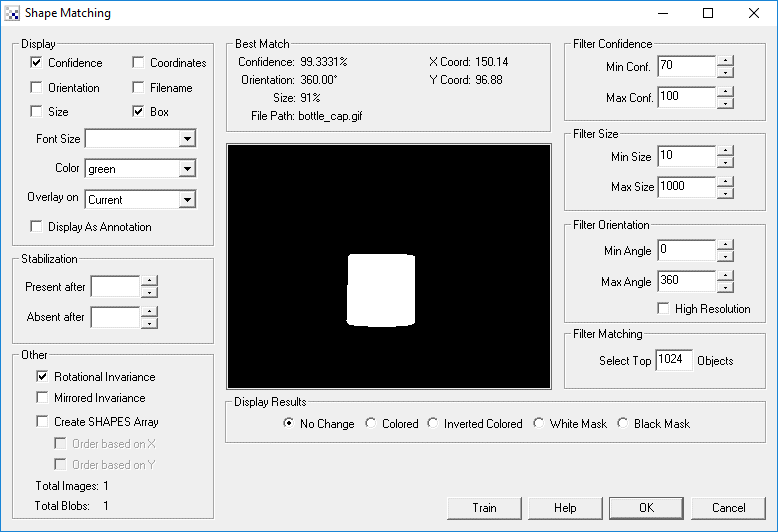
Instructions
1. Press the 'Train' button to create a new image database. This will popup the training dialog. Training images should be located in a specified folder. If you need to train on a live image from the camera, take a snapshot of that image, threshold to black and white (white being active signal) and save that image to a known folder. This folder becomes the 'training' database. When new images are added or old ones deletected you will need to retrain.
2. Click on '...' to select the folder where the images you would like to train on are. NOTE: the shape matching only works on binary black and white images with the object being in white and the background in black.
3. Select 'Start' to start training. If you would like training to happen automatically whenever a file is added, updated or deleted from the specified folder select the 'Monitor Folder' checkbox.
4. After training click on OK and begin viewing which images match the current image.
5. Click on OK to remove the matching dialog. This window can be viewed again at any time by 'editing' the module again.
6. Depending on your matches you may want to filter out specific objects. In order to get a sense of what you can use to filter out objects click on the Display checkboxes which will show the match information about each object in the main RoboRealm image window.
- Confidence - how well the shape matches those in the database. Note that this refers to the best available match in the database of trained shapes.
- Orientation - how the shape would have to be rotated to match the closest match in the database. The angle of rotation is relative to the orientation provided in the shape database. Thus exact shape matches will be 0 degree rotation whereas mirrored objects would be rotated 180 degrees.
- Size - the relative size of the shape to that in the database. 100% means the shape is the same size as that in the database. 150% means that the shape is much larger than that in the database.
- Coordinates - the center of where the detected shape and the match in the shape database best correlate. This is the center of the boxes draw around the matches.
- Filename - the name of the image file that represents the best match found in the database. I.e. this was the original filename of the image as it went into the shape database.
- Box - shows a bounding box around a matched shape that represents the scaled dimensions of the entire shape image in the database.
7. Filter Confidence - to remove shapes that are below a confidence threshold set the number in the Min Conf text area. If you wish to eliminate shapes of high confidence then enter a lower number in the Max Conf.
8. Filter Size - used to remove those shapes that are either much larger or smaller than the original used in the database.
9. Filter Orientation - used to remove shapes that are different in orientation to the shapes in the database. For example, to remove a 180 degree rotated image enter 170 for Min Angle and 190 for Max Angle to provide 20 degrees of noise tolerance. To do the same around 0 degrees use 350 in the Min and 10 in the Max. Note that angles reset to 0 above 360.
10. Filter Matching - if you just want to select the top 1 or 2 matches enter that number in the text box. This will remove all but the top X number of matches.
11. Other - unselect the "Rotational Invariance" checkbox if you do not want the system to ignore orientation during matching. This can been illustrated when matching the digits '9' and '6' which are often a 180 degree rotation of each other depending on font used. Unchecking the rotational invariance checkbox will ensure that templates match based on their current rotation.
12. Shapes Array - for further processing or exporting of data you can select the "Create SHAPES Array" which will create an array of the results of this module to be accessed by VBScript or external modules. On selecting this checkbox the following VBScript program could function.
shapes = GetArrayVariable("SHAPES")
names = GetStrVariable("SHAPES_PATH")

if isArray(shapes) then
  if ubound(shapes) > 0 then
    for i=0 to ubound(shapes)-1 step 9
      nstart = shapes(i+7)
      nend = shapes(i+8)
      write "Conf: " & (shapes(i)/1000) & "%  Path: " & _
        mid(names, nstart, nend)
    next
  end if
end if

The SHAPES array is composed of 9 numbers as follows:
Offset      Contents
0           Match Confidence 0-100
1           Orientation 0-360
2           Relative Size
3           X min coordinate of bounding box
4           X max coordinate of bounding box
5           Y min coordinate of bounding box
6           Y max coordinate of bounding box
7           Path start index
8           Length of path
The Path index is a number that defines an offset into another variable SHAPES_PATH
that contains all the path information for a particular match. Using the SHAPES_PATH
and the length of the path you can extract out the path for the match as illustrated
in the small script above.
Note that the creation of a binary image shape matching database will create a roborealm.shape file in that folder. This file contains the image information needed for matching and is a more compact form than the original image pixels.
You can change the ordering of the shapes array by selecting the appropriate checkbox. The default order of the array is in order of encounter from a bottom to top, right to left scanning. Selecting either checkbox will order the array based on the particular axis with respect to the center of the object.
Example
The image shows a bad pill shape colored in red based on shape matching confidence. Click to download a zip file that includes both the robofile
pipeline configuration and the training data.
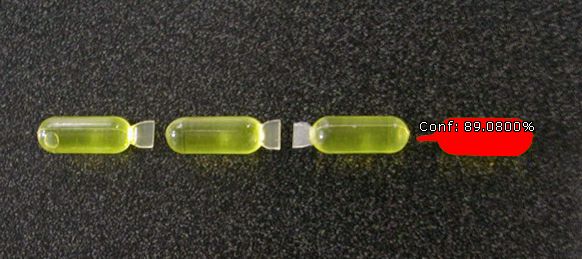
Note that the appropriate confidence, orientation, size, and coordinates are provided in the interface. You can access these statistics using RoboRealm variables within the appropriate modules (like the VBScript module). The following variables (in addition to SHAPES Array) are defined for the top match only:
SHAPE_FILENAME - filename of matched shape

SHAPE_FOLDER_1, SHAPE_FOLDER_2, etc - sub folders of matched shape

SHAPE_ORIENTATION - orientation of current shape relative to match

SHAPE_SIZE - relative size of match to that stored in database

SHAPE_X_COORD - x axis offset of shape relative to that in database

SHAPE_Y_COORD - y axis offset of shape relative to that in database

SHAPE_CONFIDENCE - how close the current object matches that
                   stored in database
See Also
Shape Matching Tutorial
Object Recognition
Image Matching
Fiducial
Auto Threshold
Center of Gravity
| New Post |
| Shape_Match Related Forum Posts | Last post | Posts | Views |
|
Objects coordinates after shape match on conveyor
Hi, I've used Shape_match module and succesfully get results. Shapes are moving on b... |
8 year | 2 | 3597 |
 Shape match save folder
Hello, I have purchased the RR today and am trying to work on the shape match module. I am followi... |
9 year | 2 | 3364 |

 Digital reader issue
Hello, i have an issue with making everything right by your tutorial. On the screen you can see tha... |
9 year | 4 | 4375 |
 Shape recognition Giving spurious results
It's been a while since I first started experimenting with RR. Now I'm back at it to create a working application,... |
10 year | 3 | 3334 |
 Matching Confidence Level
I'm new to RoboRealm, and I'm trying to use it to match parts from what would be a database of images, but the accuracy level is... |
10 year | 2 | 3470 |
|
Custom Algorithm
hello sir, I am doing research in Artificial Intelligence and robotics area. I feel glad to find RR and wish to use it in my wor... |
11 year | 9 | 5064 |
|
Variables, Auto-Play, Save of Shape-Match Train
Hello, i bought Roborealm today and I have similar problems... :) Firs... |
11 year | 7 | 4182 |
|
Shape match: Inclusion of Samples
Follow up: An inclusion of training samples into the RoboRealm Source code (as you can do it for im... |
12 year | 3 | 3736 |
|
Local folders for shape match training allowed?
STeven, is it possible to assigna a local subfolder to a shap match training sample set, such as a ... |
12 year | 3 | 3580 |
 shape matching
Hi! In the database only 2 files. One is circle.jpg another is square.jpg. I put anything in the camera. It only match the resul... |
12 year | 4 | 3994 |
 Shape Match Confidence
I am using shape matching, and have an image recognized at 90.8% confidence, and 105% size, using a filter size of 101 to 130%.&... |
12 year | 10 | 4644 |
|
RR unable to write files
Hi Steven, Today started using RR (Version 2.57.5) on my new windows 7 (embedded) computer. To my s... |
13 year | 2 | 3713 |
 exporting variables
Hi : I'm having difficulty getting geometric_statistic variables out of just objects that are shape matched in an image. I have... |
13 year | 2 | 4273 |
|
Write variables
Hi, We would like to export the X and Y coordinates from some blobs. They are shown a... |
13 year | 2 | 3766 |
 Defect Detection of No. Plate
Hi, I am a new user of RoboRealm. It's really a fantastic software. Currently, I'm trying to use... |
13 year | 7 | 5365 |