

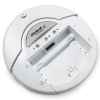
IRobot Create
The IRobot Create module provides an interface to the IRobot Create robotic platform. The module provides an interface to most of the Create's capabilities and allows you to control the robot and respond to sensor values on the robotics platform.Note that for a truly mobile platform you will need a bluetooth or other serial wireless connectivity to the Create from a PC platform.
Interface
Instructions
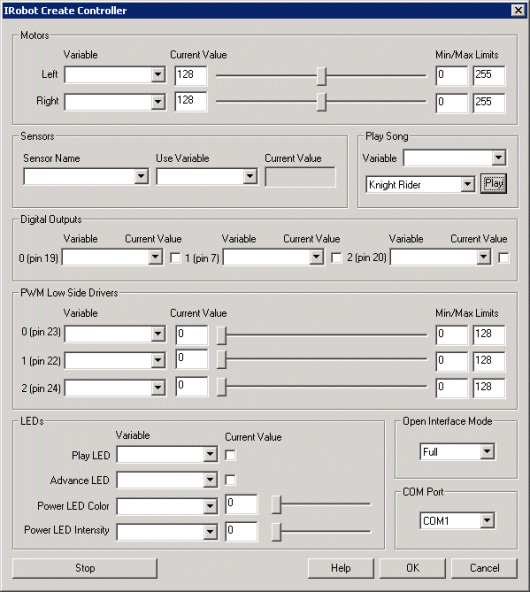
1. COM Port - Select the appropriate communications serial port.
2. Motors - You can move the motors individually by moving the scroll bars or by changing the values in the editable text box. To automate the movement of the robot you can select or type in variables that contain values that will be sent to the robot as motor intensity values. Keep in mind the STOP button at the bottom of the interface to quickly stop an out of control Create! See Variable Control for more information on how to programatically move the robot.
3. Digital Outputs - If you connect devices to the 29 pin output port in the back of the Create you can turn the digital output pins off and on by selecting the checkboxes OR by specifying variables that when non-zero are meant to turn on that pin.
4. PWM Drivers - similar to the motor interfaces you can control the PWM pins in the cargo bay connector used to extend your Create.
5. Sensors - The create has many sensors (around 47 in all) that indicate various detected external and internal conditions of the create. To react to the sensors and use those values within the RoboRealm pipeline select the sensor name and type or select in a variable that will contain the value. You can see the current value in the "Current Value" text area. This data will be placed into the selected variable for use in other modules such as the VBScript module.
Check with your Create Open Interface for all the sensor meanings and descriptions.
6. Play Song - you can quickly select a song and press play to hear the Create play a quick melody. To automate the playback of songs select a variable that will contain the song name as seen in the dropdown. Note that after the song begins playing the variable is cleared to avoid repeating the song. To add your own songs you can edit the "Music.rtttl" file in the RoboRealm folder. This file contains RTTTL formatted melodies which are converted and sent to the Create for playback. Note that the RTTTL format is the Nokia Cell Phone ringtone format and can be found for free in many sites.
7. LEDs - to quickly indicate status you can use the provided LED's that are already on the Create. You can click on the checkbox or use the scroll bars to switch off/on the Create's power, advance and play LEDs.
8. OI Mode - to ensure that the robot provides some rudimentary safety reactions leave the OI Mode to Safe. If you need to move the robot in such a way that triggers a stop you can switch the OI mode to full.
9. OI Variable - should you wish to change the Create mode with a variable enter the name of that variable here. Then whenever that variable contains one of the values Off, Passive, Safe or Full the Create will be placed into that mode.
Example
This
 robo-file
provides a keyboard interface configuration to steer your Create robot using the cursor keys. Press
the spacebar to stop! Note that the
robot motor limits are set to prevent any sudden jolt and keeps the robot speed very slow.
See the keyboard module to see how to add other key commands.
robo-file
provides a keyboard interface configuration to steer your Create robot using the cursor keys. Press
the spacebar to stop! Note that the
robot motor limits are set to prevent any sudden jolt and keeps the robot speed very slow.
See the keyboard module to see how to add other key commands.
Wireless Connectivity
For those of you looking for a wireless solution to control the Create from a PC be sure to have a look at Element Direct and their BAM Create Bluetooth. We've tested this out and it works very nicely with RoboRealm! Setup only takes about 10 minutes.
For more information
IRobot Create Website
| New Post |
| IRobot_Create Related Forum Posts | Last post | Posts | Views |
|
Can turtlebot 2 be controlled by RoboRealm
Is there a module in roborealm that will allow control of the turtlebot 2 similar to the coroware corobot module?... |
13 year | 3 | 3446 |
|
irobot create auto move
I am trying to move the irobot create using VBScript SetVariable "left_motor", 118 ... |
13 year | 3 | 3676 |
|
iRobot Create
I am running roborealm, iRobot Create, BAM, and bluetooth. I tried using the iRobot_Create_example.robo sc... |
14 year | 2 | 3724 |
|
irobot create \'demo variable\'
Whenever I set something for the variable, I seem unable to get manual control of the motors back. I've tried using... |
15 year | 4 | 4416 |
|
Controlling motors of iRobot Create through VB script program
Hi, I'm trying to write a script using the VB script program in RoboRealm to cause iRobot Create to respond to th... |
16 year | 4 | 7508 |
|
iRobot Create Module Problem
I am working with the API to control my Create using the module. Here is a snippet from the .robo file: | 17 year | 3 | 4636 |
|
Programming Irobot Create via C
Hi, I'm trying to program the irobot create and I wanted to use the GUI from roborealm to do this.... |
17 year | 6 | 7696 |