

RGB Filter
The RGB Filter uses RGB values to focus the attention towards the primary RGB colors. Depending on the color selected this filter will diminish all pixels that are not of the selected colors. This function is different than RGB Channel in that white pixels are also diminished even though they may contain the color selected.For example, if Red is chosen:
R = ((R-B)+(R-G))
G = 0
B = 0
R is then normalized with respect to the maximum red value.
Based on the above formula it can be seen that white pixels result in a zero value whereas pure primary colors (R=255, G=0, B=0) R doubles its value. Thus function does a better job than RGB Channel in filtering for a particular color as white light is removed.
Due to normalization really dark pixels can be elevated in intensity and generate too much noise in the resulting image. The Min Pixel Value allows you to specify a minimum value below which pixels are considered to be black and will be ignored when calculating the image results. Default value is 40 (0-255).
You can use this filter to focus the image towards certain colors even with diminished lighting conditions.
Interface
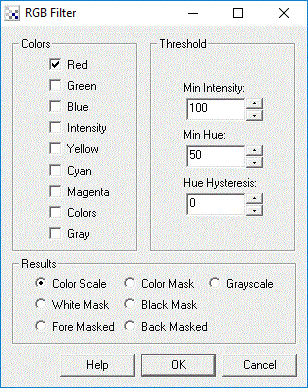
Instructions
1. Colors - Chose the desired color Red, Green, Blue, etc. by selecting the appropriate checkbox. Note that "Colors" refers to those pixels that have strong colors in the image regardless of what color the pixel is (color saturation) while "Gray" refers to how close to a gray color pixels are. These two selections can be used to diminish colors and pronounce gray areas ("Gray") or diminish white areas and pronounce colors ("Colors").
2. Threshold - Select the min intensity pixel value that specified which values should be removed that are below a certain threshold. This helps remove pixels that are dark and do not contain enough color information. This is typically seen when detecting blue in dark areas.
3. Threshold - Select the hue threshold. This removes colors that are not 'blue' enough or not 'red' enough, etc.
4. Threshold - If needed select a hysteresis level. The hysteresis level will allow blobs that have at least one pixel above the hue threshold to grow into the surrounding area as long as the hue level is above the threshold minus the hysteresis level. Thus if the hue threshold is set to 80 and the hysteresis is set to 20 then only blobs that have a pixel above 80 will be preserved and any that do will include all pixels with hue above 60. This is useful to grow/connect a blob below the hue threshold while still preserving the filtering effects of the hue level.
5. Results - Select how the results should be represented
RGB Scale - resulting values are scaled RGB values from 0 to 255 that depend on how close the original color is to one in the Colors list
RGB Mask - resulting value is the color that is most similar to one in the Color list
Grayscale - resulting value is how close the color is to a color in the Colors list but represented in grayscale values
White Mask - resulting match value is white, non-match is black
Black Mask - resulting match value is black, non-match is white
Fore Masked - resulting image shows original color where a match is made
Back Masked - resulting image shows original colors where a match was NOT made. This is useful in determining how
well your matched colors are working on the actual image.
6. Train button - Select the Train button to open an interface where you can specify the object to detect and have the module parameters be updated to achieve that goal. See the Label Object documentation for more information.
Example
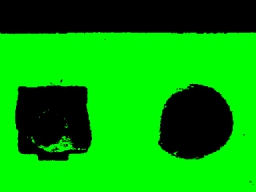
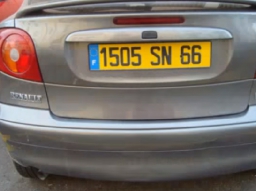
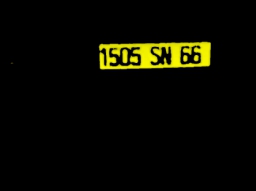
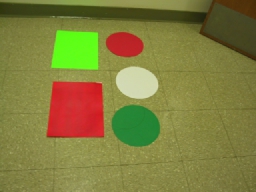
| Source Image | Green Filter with 10, 30 threshold |
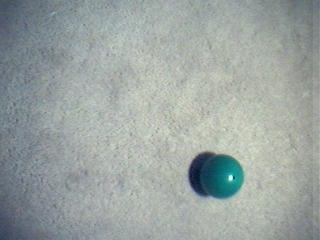 | 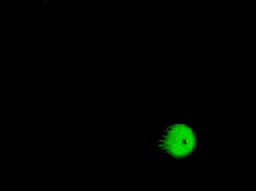 |
 | 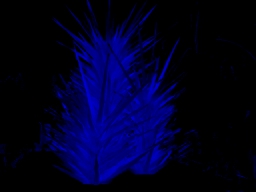 |
 Download the robofile used to generate the above image. Download the robofile used to generate the above image. | |
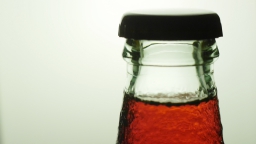 | 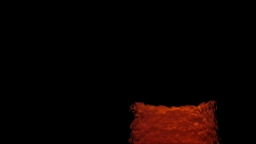 |
| Download the robofile used to generate the above image. | |
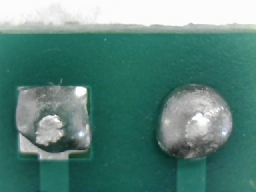 |  |
| Download the robofile used to generate the above image. | |
 |  |
| Download the robofile used to generate the above image. | |
 | 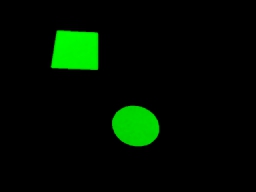 |
| Download the robofile used to generate the above image. | |
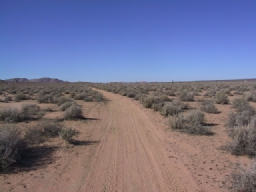 | 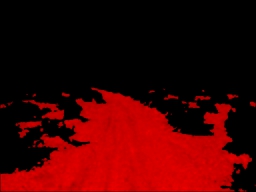 |
| Download the robofile used to generate the above image. | |
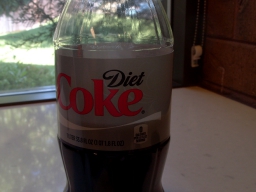 |  |
| Download the robofile used to generate the above image. | |
Variables
RGB_FILTER_COLORS_COUNT
RGB_FILTER_GRAY_COUNT
RGB_FILTER_RED_COUNT
RGB_FILTER_GREEN_COUNT
RGB_FILTER_BLUE_COUNT
RGB_FILTER_INTENSITY_COUNT
RGB_FILTER_CYAN_COUNT
RGB_FILTER_MAGENTA_COUNT
RGB_FILTER_YELLOW_COUNT
	- specifies the number of pixels detected belonging to that particular
	color/intensity category. Note that even low intensity pixels may
	be included.
See Also
Color Filter
RGB Channel
Threshold
Auto Threshold
| New Post |
| RGB_Filter Related Forum Posts | Last post | Posts | Views |
|
Color tracking
Hi STeven, I having a hard time on vision using RGB_Filter to tracking color and complete the task ... |
6 year | 1 | 2432 |
|
Analog Input
I would lie to control a RGB filter variable (Min intensity) from an analog input in from the Phidgets 8/8/8 module. | 8 year | 2 | 3879 |
|
VB Program help
Dear Stevens, Thank you very much for your help on IF_Statement module and call function module. I ... |
10 year | 2 | 4087 |
 Trying to quantify weeds out of field crop
Hello there I am trying to quantify weed population in field. First image is raw image and second one i... |
10 year | 2 | 4797 |
|
detect white color?
How to detect white color using RGB filter? ... |
11 year | 3 | 4419 |
 traffic light detection
hi everyone, i want to use webcam to detect the green light, yellow light, red light and then give the... |
11 year | 9 | 5405 |
|
take photo
Hi, I want camera to take picture when blob count is 2, I will show two red ball and then camera should take a picture at that t... |
13 year | 3 | 4399 |
|
RGB Filter
Is there a way to turn one RGB filter on and turn another off?... |
13 year | 4 | 5226 |
 Tracking Black Objects
I am trying to track a black, velcro covered disc, similar to a hockey puck. I was going to use pseudo-color to change black to ... |
13 year | 4 | 4823 |
 How to make the connection with the automat
Hi I'm actualy working in a university to make the implantation of the vision in the robotic labor... |
13 year | 3 | 4767 |
 vision system
dear sir, i want to recognize corn plants in respect of its shape, size and height., and the program should send a signal to the... |
13 year | 2 | 4766 |
 read the distance among two colors
hi, I write you from Italy, I apologize me of my a little clear English. Would I like to know if it is possible t... |
14 year | 15 | 5642 |
 color recognition
Hi I have three types color of cars which are green, red, and blue. I want to recognize them with only color. Came... |
14 year | 7 | 5561 |
 AVM Navigator Module Inaccurate?
I am trying to track a simple pendulum using the AVM navigator module. However, when I use the Learn from motion option, the pen... |
14 year | 25 | 8185 |