

Python Script
Please be sure to read the Plugins page to get a general sense of if the Python module is a good fit for your project.
The Python module provides a way to create custom Phython scripts that can be used to process image statistics and map then toward servo/motor values. This module is intented to be used as a way to quickly perform custom operations without needing to implement a Plugin or use the API which typically require external tools.
The interface allows two methods for specifying your code. One technique requires that you specify a text file as the source of the program. You can use your favorite text editor to edit/create this file. The file should be a regular text file containing Python commands/functions/operators. The program interface displays the current file being used, available system or user variables (and their values) and any messages the program produces.
The alternate way is to include the Python text within the provided text box (see below). Using this technique allows you to include the Python code within the .robo program and not require another user to save the code and reference a text file as needed by the above file based technique. Using the text box provides a quick way to enter in text but is NOT meant as a replacement for a full featured text editor as its editing features are very basic.
Note that in any Python script you MUST "import rr" before you can use any of the embedded Python <-> RoboRealm specific functions.
Interface
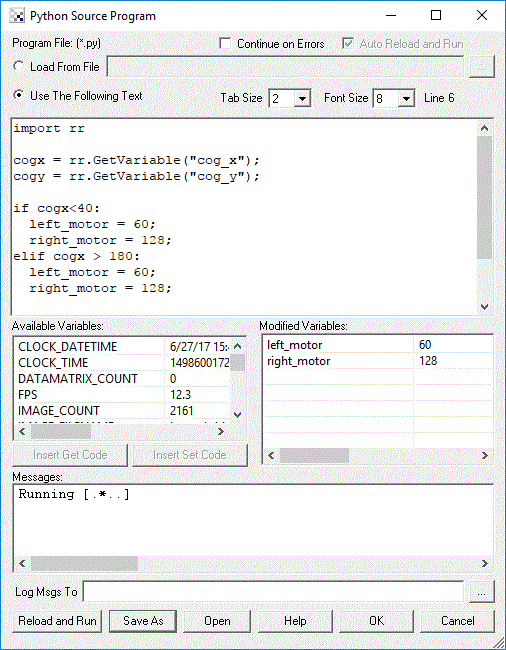
RoboRealm Specific Functions
- Print("text") - sends text to the Python module message output area in the dialog interface used for debugging. Note that lack of "rr." as this function is global.
- rr.VariableExists("variable_name") - returns true or false depending on if the specified variable exists in RoboRealm. Several of the variable return functions below will return a valid value regardless of if the variable exists or not. You can use this function to determine if the value returned from one of these functions is a valid value.
- rr.GetVariable("variable_name") - returns an integer value of the specified variable
- rr.GetStrVariable("variable_name") - returns the string value of the specified variable
- rr.GetArrayVariable("array_variable_name") - returns the array associated with the specified variable
- rr.SetArrayVariable "array_variable_name", array_variable - sets an array associated with the specified variable name; for example
import rr points = [100,100,150,200] rr.SetArrayVariable("waypoints", points) - rr.SetVariable("variable_name", variable_value) - sets the variable value to the specified variable
- rr.SetTimedVariable("variable_name", variable_value, timeout) - sets the variable value to the specified variable after
the timeout (milliseconds) has passed. This allows you to specify when in time a variable's value should be
changed. Note that each call to SetTimedVarible will reset the timer so be sure to only call it once to
allow the time to lapse and set the specified value.
This function is useful when you need an alternative to the Sleep function.
By setting a variable to a value in the future you can
emulate a Sleep function by allowing something to happen for a period of time, but then switching it off after the time has lapsed. So
instead of using
rr.SetVariable("motor", 100);
rr.Sleep(1000);
rr.SetVariable("motor", 0);
you could userr.SetVariable("motor", 100); rr.SetTimedVariable("motor", 0, 1000); - rr.AddTimedVariable("variable_name", variable_value, timeout) - similar to SetTimedVariable, this function will instead
add the timing parameter to a queue instead of overwriting the timing information. For example:
rr.SetTimedVariable("motor", 100, 1000);
rr.SetTimedVariable("motor", 200, 1500);
rr.SetTimedVariable("motor", 300, 2000);
will result in the motor variable being set to 300 in 2 seconds (2000 ms). What happens is that the first two calls to SetTimedVariable are OVERWRITTEN by the third. Instead, if you userr.AddTimedVariable("motor", 100, 1000); rr.AddTimedVariable("motor", 200, 1500); rr.AddTimedVariable("motor", 300, 2000);the motor variable will be set to 100 in 1 second, 200 in 1.5 seconds and finally 300 in 2 seconds. The AddTimedVariable will add each call into a list that is executed in sequence based on the specified time. - rr.Sleep(X) - suspends processing for X number of milliseconds and returns control to the pipeline to acquire additional images and send values to external devices.
- rr.WaitVariable("variable_name", variable_value) - suspends processing until the specified variable equals the specified value. This function returns control to the pipeline to acquire additional images and send values to external devices while it waits for the variable value.
- rr.WaitVariableChange("variable_name") - suspends processing until the specified variable changes its value. This function returns control to the pipeline to acquire additional images and send values to external devices while it waits for the value to change.
- rr.WaitImage() - suspends processing and returns control to the pipeline for one pipeline iteration. This allows for the acquisition of additional images and to send values to external devices.
- rr.GetPixels() - returns an array of RGB values of the current image
- rr.SetPixels(pixel_data_array) - sets the current image to the specified pixel RGB data
- rr.SetParameter("module_name", count, "param_name", "param_value") - changes the specified parameter in the specified module to the specified value. This is useful when a GUI dialog does not have a variable selection as part of the dropdown. Avoid using this function unless necessary as it is slow to update the GUI. Count is used to distinquish between multiple uses of the same module (i.e. module_name would be the same for either module).
- rr.GetParameter("module_name", count, "param_name") - returns the specified parameter in the specified module. This is useful when a GUI dialog does not expose a value within a variable. Count is used to distinquish between multiple uses of the same module (i.e. module_name would be the same for either module).
- rr.GetStrParameter("module_name", index, "param_name") - the string version of the above routine.
- rr.StopProcessing() - stops RoboRealm from continuing to process the images with the remaining modules
- rr.CameraOff() - switches off the image capturing from the current camera
- rr.CameraOn() - switches on the image capturing using the current camera
- rr.PushButton("Module_Name", Module_Index, "Button") - automates pushing a button in one of the
RoboRealm GUI windows. For example:
import rr
if rr.GetStrVariable("test") <> "pushed":
  rr.SetVariable("test", "pushed")
  rr.PushButton("Read_AVI", 0, "Start")
will cause the Read_AVI module (assuming one exists in the pipeline) to start playback.import rr rr.PushButton("RoboRealm", 0, "Snap")will cause RoboRealm to create a snapshot of the current image.
Examples
To access variables from your Python file/script use the following commands:
MyVar = rr.GetVariable("variable_name")
Or to create a new variable use
rr.SetVariable("variable_name", variable_value)
Once a new variable is created this variable becomes available to control functions (such as in the SSC module) that can be used to automatically control a servo/motor.
You can also get variable arrays using
MyVar = rr.GetArrayVariable("variable_array_name")
or get individual entries in an array using
MyVar = rr.GetVariable("variable_array_name:2")
which would return the second entry in an array.
To change a variable's value in X milliseconds you can use
rr.SetTimedVariable("variable_name", variable_value, timeout_in_milliseconds)
which is very useful for resetting motor values after a period of time.
All regular Python commands and operators are available for use in the file. See Official Python Website for complete documentation on how to use Python commands.
For example the following program (assuming you have added the Center Of Gravity module) will map COG to servo motors:
cogx = rr.GetVariable("cog_x")
cogy = rr.GetVariable("cog_y")
if cogx < 140:
left_motor = 60
right_motor = 128
else:
if cogx > 180:
left_motor = 128
right_motor = 60
else:
left_motor = 128
right_motor = 128
rr.SetVariable("left_motor", left_motor)
rr.SetVariable("right_motor", right_motor)
Note that the COGX values range from 0 to 320. COGY ranges from 0 to 160. These values are bounded by the current image size. These values may change if you crop, shrink, etc. the image dimensions.
You could then use a module like the SSC module to map the "left_motor" and "right_motor" variables to actual servos.
You can also process the image pixels directly using Python. This is useful for prototyping but not recommended due to performance reasons for actual usage. The Python module supports two routines to get and set the image pixels. Following is the example SwapColor module but in Python.
width = rr.GetVariable("IMAGE_WIDTH")
height = rr.GetVariable("IMAGE_HEIGHT")
img = rr.GetPixels()
len = width*height*3
i = 0
while (i<len):
t = img[i]
img[i] = img[i+2]
img[i+2] = t
i+=3
rr.SetPixels(img, width, height)
To write variables or debug statements to a log file you can use
f = open('c:\\temp\\test.txt', 'a')
f.write(rr.GetStrVariable("cog_x") + ':' + rr.GetStrVariable("cog_y") + '\n')
f.close()
The module has a built in timeout mechanism to avoid infinite loops from hanging the application. This timeout is set in Options Button-> Other Tab-> Timeouts Pipeline should you need to increase the default 10 seconds.
Variables
On each successful run of the script the SCRIPT_COUNT variable is incremented. Thus you can use this variable to indicate a first run state where variables can be initialized to default values. Note that the Reload and Run button will reset this count to 0. You can also use the IMAGE_COUNT variable to determine first run when the Run button in the main GUI is toggled. The SCRIPT_COUNT is NOT changed when the main GUI Run button is toggled.
Downloads
If RoboRealm complains about missing components you may need to download Python.
See Also
JScript Program
VBScript Program
CScript Program
| New Post |
| Python_Program Related Forum Posts | Last post | Posts | Views |
|
Python 32 bit DLL on Win 7 ia64
Got the missing "phython30" (sic) dll error message, but cannot resolve by installing 32-bit python, not even with python 3.0... |
13 year | 5 | 5293 |
 Memory usage increases over time
Hi, I've found that running a program in Roborealm over an extended period - 1-2 weeks - will resu... |
14 year | 3 | 4702 |