

Point Cloud
The Point Cloud module is used to create a solid structured based on a cloud of points. This is normally needed after sampling certain images devices such as LIDAR type systems whose end result is a set of sampled points at non-discrete intervals. The Point Cloud module is one way of joining these sparse points into a uniform solid in order to provide additional processing.Once these points are accessed they are normalized to fit into an image with the specified dimensions. Thus even if your point x range is from -100 to -50 the resulting image will represent that range but with x coordinates translated to 0 to 320 assuming that you specified an image width of 320.
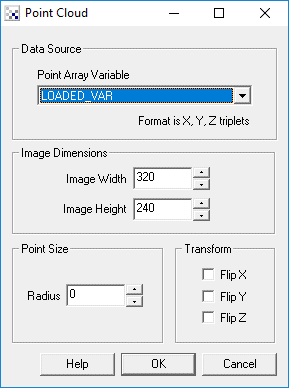
The resulting graphic image is created by normalizing the data points and drawing an averaged circle at each point in the new image. The size of the circle (seen below as radius) is relevant in that you want the size to be large enough to overlap with nearby points but not too large as to obscure the object boundaries. It is best to interactively play with the radius to see which size suits your needs given your desired image dimensions.
Interface
Instructions
1. Point Array Variable - Specify which RoboRealm variable contains the x,y,z point coordinates to be draw as an image. Note that this data triplet is contained in a SINGLE variable as apposed to three separate variables. This variable can be created from any other module within RoboRealm including the Read Variables, VBScript or specified through the API.
2. Image Width - Specify the width of the resulting image you wish to create.
3. Image Height - Specify the height of the resulting image you wish to create.
4. Radius - Specify the size of the circle drawn at each point. Overlapping circles are averaged to provide a smooth point to point transition.
5. Transform - As point coordinates are not always in the right orientation in the data file you can select a combination of coordinate flips that will help to orient the final image. Note that flipping Z is actually inverting the intensity at that point. If your image appears too dark or two light try flipping the Z.
Example
| Points with radius 0 | Points with radius 2 |
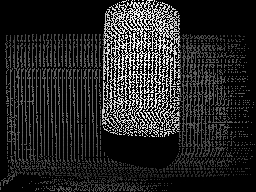 | 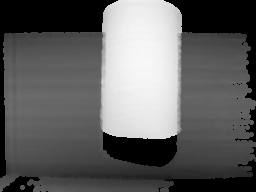 |
Produced from a text file with 21,985 points in the following format:
22 159 500
24 164 514
26 162 508
39 159 500
52 162 508
...
Note that the Z or intensity is above the normal 255 image intensity limit but as this number is also normalized the resulting image is acceptable.
Once represented as a graphic image all the other RoboRealm modules can now be used to segment or quantify objects as would be the case with webcam images.
See Also
Read Variables
| New Post |
| Point_Cloud Related Forum Posts | Last post | Posts | Views |
| None |