

Note that no emails will be sent out until you press the Start button.
Interface
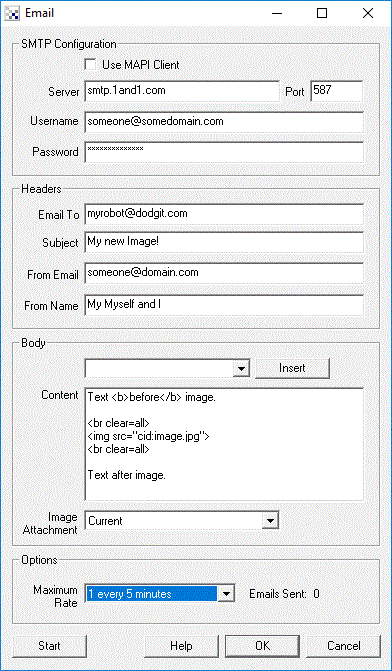
Instructions
1. SMTP Configuration - The SMTP (Email) server is required if RoboRealm is operating within your local network. Basically check your current email program for these settings normally located under "Account Settings" or "SMTP Configuration", etc. The SMTP Server is the mail server that will accept emails from you. There are cases when this information is not needed as RoboRealm will try to deliver the email directly to the recipient if no SMTP Server is specified but this may not always work.
2. Use MAPI Client - if you have an email client configured you can use that client to send email. This is advantageous as RoboRealm will then use the configuration already specified in your email program to send email. This includes secure server connections and username, password information. Note that some email programs may require confirmation in order to send email. If RoboRealm stalls in sending email check your email client program to see if it requires confirmation to send email.
Most errors that occur in setting up a MAPI client are that the expected mail client isn't the default mail client. This can be verified by going into the Control Panel->Default Programs->Set Default Programs.
3. SMTP Port - Note that some SMTP servers require connection on a different port. The default is 25, but 587 is also often used instead.
4. Username/Password - Some SMTP servers require a username/password to login to the server before you are allowed to send email.
5. Email To - Specify who the email should be sent to
6. Subject - Specify the subject of the email
7. From Email - Specify which email address is sending the email (i.e. which address to use in a reply)
8. From Name - Specify the person's name whose email address is in "From Email".
9. Body - Type in any text that should be sent as part of the email. Note that you can use the dropdown list to select the attached image or any RoboRealm variable and then press INSERT in order to add in that text. Note that if you do not specify where to place the image in the email body it will be added as an attachment regardless.
10. Image Attachment - specify which image to send with the email.
11. Maximum Rate - used to limit the number of emails sent to a specified rate so that you do not overload the email server.
12. Start Button - no emails will be sent out until you press the Start button.
Notes
The Email module will keep sending out emails as per the "maximum rate". If you want to only send out emails based on other factors such as movement you will want to combine the module within an If Statement to only execute it when something moves.
For example,
 Click here
to load a configuration that will send an email when something large moves in front of the
camera. Note that you will need to configure the email module before it will send an email to you.
Double click on the Email text in the pipeline interface to bring up that configuration.
Don't forget to press the Start button once you've configured the module.
Click here
to load a configuration that will send an email when something large moves in front of the
camera. Note that you will need to configure the email module before it will send an email to you.
Double click on the Email text in the pipeline interface to bring up that configuration.
Don't forget to press the Start button once you've configured the module.
If you do not know the SMTP configuration information try just specifying the email header and body and test to see if the email is received.
The email body is sent as a HTML text block so that you can include any HTML tags within the email body to be rendered in the email reader's client.
If you want to send the email to more than one address include multiple addresses (up to 16) using commas in the Email To field.
Watch the "Emails Sent" text in the lower right corner of the interface. Once you see it increment check your email account. Be sure to check your junk mail folder in case it ended up there!
See Also
WebServer
| New Post |
| Email Related Forum Posts | Last post | Posts | Views |
|
Email Module MAPI
Hello, I'm trying to setup a simple program to e-mail an image using the MAPI feature in the email... |
12 year | 2 | 3659 |
|
Multi email accounts
Is it possible to have multiple individual email accounts where any one may be singularly and automatically &nbs... |
12 year | 4 | 3597 |
|
Emailing
Is it possible to have multiple individual email accounts where any one may be singularly automatically in... |
12 year | 1 | 2745 |
 email module
HI I did a movement reaction program to send me emails.. It did work a couple of times, then it sta... |
17 year | 2 | 4616 |