

Internet Camera
The following tutorial illustrates how to setup RoboRealm to control a moveable camera over the Internet using your web-browser.The first thing you need to do it to turn on the RoboRealm webserver. You do this by clicking on the options button in the main RoboRealm dialog and selecting the checkbox that appears in that dialog.
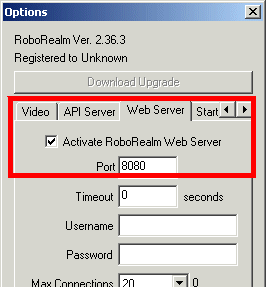
Once you have clicked on that checkbox you can now start streaming video over the Internet. To test your current setup access the following Url in your browser on the machine running RoboRealm.
http://localhost:8080/index.html
And you should see the same image in your browser that you see within the RoboRealm interface. Note that you will need Java enabled to see the image. If your IE browser does not support Java try FireFox.
Be SURE that the Max Connections in the interface is larger than 1 otherwise only one person will be able to connect to the webserver at a time. When using the pan/tilt buttons you will need at least 2 connections. One for the video and the other for the move commands so be sure at least 2 connections are allowed.
You will notice a couple of buttons below the image. These buttons can be used to set a variable within RoboRealm. In this case we will use the 'move' variable to signal the type of move we want to accomplish.
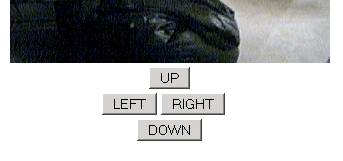
The RoboRealm webserver supports getting and setting of variables using the url. The format for setting a variable is as such:
http://localhost:8080/set_variables?my_var1=test&my_var2=test2and can be used to set multiple variables at once. When this url is executed the variables my_var1 and my_var2 will be created in RoboRealm with the appropriate values "test" and "test2". In our case with the buttons we set the variable "move" to 1, 2, 4, etc. based on the Logitech Orbit camera.
You can modify the Javascript routine contained in the index.html page to set and get any variable within RoboRealm. See the index.html page within the folder where you installed RoboRealm to change that source page.
The problem with setting a variable using the web interface is timing. Once set a variable will stay set and therefore cause the camera to keep moving. What we need is for the variable to become zero after a small amount of time.
This is accomplished using the following VBScript used within the VBScript module.
if move then
if GetVariable("LAST_CHECK") = "0" then
SetVariable "LAST_CHECK", Timer()
else
if Timer() - GetVariable("LAST_CHECK") > 2 then
SetVariable "move", 0
SetVariable "LAST_CHECK", 0
end if
end if
end if
Now we lastly need to put all this together to create a robo-file with the appropriate configuration.
To try this out for yourself  download the robo-file and execute it using RoboRealm.
Turn on your webserver and point your browser at the above url. You should now be able to control your
Orbit (or any other of the many devices that RoboRealm supports) from within your web-browser.
download the robo-file and execute it using RoboRealm.
Turn on your webserver and point your browser at the above url. You should now be able to control your
Orbit (or any other of the many devices that RoboRealm supports) from within your web-browser.
The End
That's all folks. We hope you've enjoyed this little adventure into an application of machine vision processing. If you have any questions or comments about this tutorial please feel free to contact us.
Have a nice day!
| New Post |
| Internet Camera Related Forum Posts | Last post | Posts | Views |
| None |