

Chart Variables
The Chart Variables module provides a way to better view the changes that occur for a given variable over time. While the Watch Variables module shows the current value of a variable at the current time it is sometimes preferable to view how a variable changes value over time or be able to view more of the context of a variable when changes happen. The Chart Variable will read the currently specified variables values and plot them on a simple chart scrolling on each new image capture. Note that the placement of the Chart Variable module is relevant as is with the Watch Module. If you change a variable AFTER the chart variable then the module will not see the change until the next pipeline iteration when a new image is captured.Currently only 1000 values are held for charting purposes. Values older than 1000 samples are dropped.
Interface
Instructions
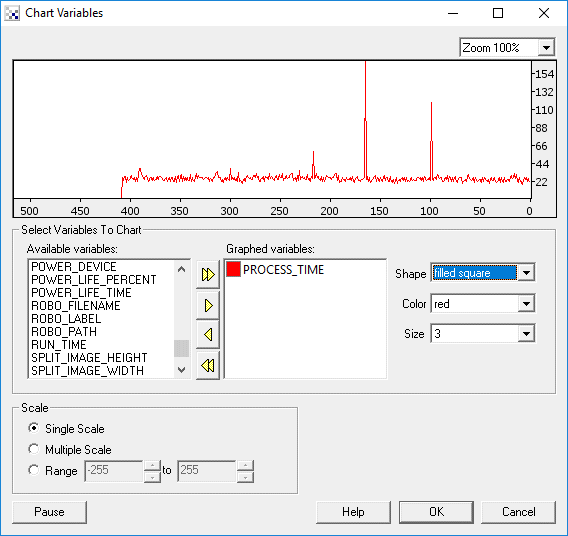
1. Variables to Chart - Select which variables you wish to chart using the provided "Available Variables" listbox. Either double click on a variable of select a variable and click on the appropriate yellow arrow to move the variable into the Graphed Variables listbox. As soon as the variable shows in the Graphed Variables listbox it will be charted. Note that the default chart color is red for all new variables so be careful when adding multiple variables to select different chart colors.
2. Shape / Color / Size - Select the appropriate shape, color and size of the small square that indicates a value for each sampled value of the graphed variable. Note that the color is also used to connected the values to form a line chart.
3. Scale - Select how the chart should reflect the different vertical values for the graphed variables.
-
Single Scale - Use a single scale to encompass all the variable values into
a single graph. Note that if one variable has a high range whilst another has
a very low range then the second variable will appear to be unchanging as the
first variable will define the vertical scale of the chart. I.e. the first
variables values will overpower the scale of the second and make it appear
unchanging. If this happens select the Multiple Scale option.
- Multiple Scale - This scaling scheme will determine an effective
vertical scale for each variable individually and plot that variable with
respect to its own scale. Thus if one variable has a very high range it will
NOT affect another variable with a smaller range. All variables are plotted
with respect to only themselves and NOT each other.
- Range - Lastly you can specify your own scale to use when viewing the variable values. This causes each variable to be plotted with respect to ymin and ymax values. If a variable's value is above or below this range it will NOT appear on the chart. You are responsible to determine the best range to plot all variables being monitored.
4. Zoom - select and effective zoom or horizontal scale. When viewed at + 200% each value is marked with a square. You can also scroll the chart by grabbing and moving the chart left or right using the mouse. Moving the mouse over the chart will highlight the nearest value and display the value at that point.
See Also
Watch Variables
| New Post |
| Chart_Variables Related Forum Posts | Last post | Posts | Views |
 Display charts in kiosk mode without options
It would be very helpful to have the chart from the chart variables modules without the options. I want to displa... |
8 year | 2 | 2932 |
|
Display Serial Data
Hi, I have serial data displayed but it flashes on and off at the at the serial data refresh rate. I... |
11 year | 5 | 5126 |
|
reading values after time lapse
How do i read a variable (exp COG_X) value at Time = 1second ago and compare this with the current value (Time = current) | 15 year | 3 | 4352 |