

RoadNarrows CogniBoost
The RoadNarrows CogniBoost module provides an interface to the CogniBoost vision recognition board. Powered by the CogniMem CM-1K neural network chip by General-Vision, visual objects are readily detected and categorized from patterns previously trained. The recognized visual categories are then fed into RoboRealm to guide goal decisions, object localization, platform movement and navigation, and environment manipulation.The CogniBoost RoboRealm module can be used to train patterns on the board. Recognized object categories are fed back into RoboRealm as variables that can be used by other modules or transported to external application/devices.
The module sends images to be recognized to the CogniBoost board. This allows images to be prefiltered, oriented, etc. using all of RoboRealms other modules in order to improve recognition results or focus recognition on specific image aspects.
Interface
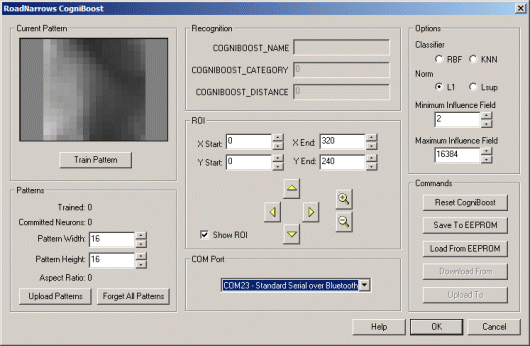
Instructions
1. COM Port - Select the appropriate COM port that is connected to the CogniBoost board. If the appropriate COM port does not appear ensure that all connections are made and that the CogniBoost board is turned on. Close the module and reopen to see if the COM port appears in the dropdown list.
2. Train Pattern - Pressing this button will cause CogniBoost to train on the currently viewed image. This image is stored in CogniBoost and will immediately start detecting the presence of that object. You should see the Recognition values being populated as soon as an object is trained.
3. Pattern Width & Height - The CogniBoost works with 256 'pixel' values. In order to create a two dimensional image a width and height of a pattern is required. If you find that your patterns are better detected in a more vertical or horizontal shape as apposed to the default square pattern you can change the width and height appropriately. Note, however, when you change these parameters you WILL lose all currently trained patterns.
4. Upload Patterns To CogniBoost - uploads images from the PC to the CogniBoost board. Note that these images MUST have the same dimensions as what is currently configured in the CogniBoost board based on the ROI settings. See Pattern Width and Pattern Height for what this size needs to be. Note that images can be of any recognized image format but it is recommended to use a non-lossy image compression technique such as gif or png in order to store images. This ensures that the trained pattern is exactly the same as the stored image. Note that you may wish to "Forget All Patterns" before uploading to ensure that only those images uploaded are contained with CogniBoost.
5. Forget All Patterns - Causes CogniBoost to forget all trained images and set its pattern counter to zero. This should be used before training on valid images to clear out any experimental patterns that you may have trained on. This should also be used prior to uploading patterns to CogniBoost to clear out existing patterns. If you do NOT use this function prior to uploading patterns new patterns will be added to the current list within CogniBoost possibly duplicating existing patterns.
6. ROI - To focus on a specific area of an image you can change the ROI (seen as a red square in the live image) to change what part of the image is focused on. Often it is not possible to align the camera on the expected object position such that the object completely fills the field of view. When this happens adjusting the ROI to ignore non-object areas of the image can help improve object recognition. Note that the ROI area is scaled into the pattern width and height before sending it to the CogniBoost.
Note that changing these parameters may invalidate image patterns that you have trained on if the aspect ratio changes from what was trained. This is due to the scaling requirement to map the ROI into the pattern size.
7. Options
8. Reset CogniBoost - You can reset the CogniBoost board by pressing the "Reset CogniBoost" button. This will cause CogniBoost to forget all patterns in volatile memory and reload all its settings.
9.Save To EEPROM/Load From EEPROM - When training or uploading images or changing camera settings all these changes are stored in volatile memory on the CogniBoost board. This means that if you turn off the CogniBoost board all these settings are lost. To save these settings such that they are used again once the CogniBoost board is turned on you need to "Save to EEPROM". Likewise, if you wish to reload all saved settings (to erase all current settings stored in memory) you can press the "Load From EEPROM" button.
Variables
COGNIBOOST_NAME_X - The category name associated with the recognized
category. Note that this is a RoboRealm specific association and is
NOT present on the CogniBoost board. Up to four categories can be
recorded at one time. Note that they are ordered with regards to
distance with the first being the closest best match.

COGNIBOOST_CATEGORY_X - The numerical category CogniBoost has assigned
to the trained pattern. When the pattern is presented again to CogniBoost
this category number will become available as a recognition
identification code that the object is present.

COGNIBOOST_DISTANCE_X - A measure of recognition confidence or the "distance"
of the current recognized pattern to its associated pattern stored in
CogniBoost.
For more information
RoadNarrows CogniBoost
CogniMem Decision Space Mapping
| New Post |
| RoadNarrows_CogniBoost Related Forum Posts | Last post | Posts | Views |
| None |