

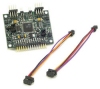
Nubotics Wheel Commander
The Nubotics WheelCommander™ is a servo/motor controller that incorporates closed loop functionality to differentially driven robots when combined with odometry encoders.Motor control is derived from geometrical robot dimensions to create a highly abstracted motion control module.
The WheelCommander module allows you to interface this device within RoboRealm.
Interface
Instructions
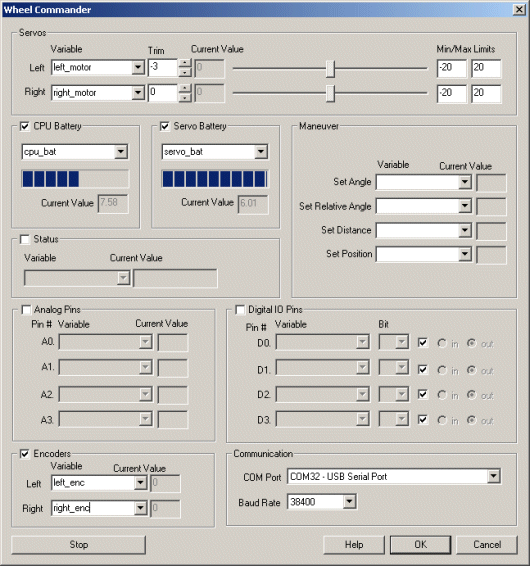
1. Communication - Select the appropriate COM port that the controller is connected to on your computer. Note that you will only see COM ports that are recognized by your computer.
2. Baud Rate - Select the appropriate baud rate. Note that 38400 is the default.
3. Servos - After specifying the COM port and baud you should be able to move your servos by dragging the sliders to the right or left or by specifying a number within the current value text box in the Servos area. If the servos do not move check your COM port setting and/or board connections. You should see a small red light flash on the board when motor commands are being sent. If you do not see this light when moving the scroll bar around check your connections. If you do see a flashing light with no movement check the servo and left/right channel you plugged the servo into.
5. Variable - Select an appropriate variable that contains or will contain the position value that will be sent to the board. This is used to automatically change the servo values based on your VBScript (using the SetVariable function) or Plugin based program.
6. Min/Max Limits - You can use the min/max limits to ensure that even if the variables specify large or low values (due to programming errors) that the board does not actually attempt to move the servos above or below the specified limits. This can be used as an additional precaution in case your servos cannot physically move beyond certain limits.
7. CPU Battery - The CPU/Digital battery level is indicated by the progress bar and the actual current volts. To programmatically react to the battery value select a variable that will contain the battery value. The value indicates how many volts are being fed into the board to support the digital operations of the board. Note that you must select the checkbox next to the CPU Battery text in order to activate this functionality.
8. Servo Battery - The servo battery level is also indicated by the progress bar and the actual current volts. To programmatically react to the battery value select a variable that will contain the battery value. The value indicates how many volts are available to drive servos. Note that you must select the checkbox next to the Servo Battery text in order to activate this functionality.
9. Status - If you want to know the status of the board specify the variable that is used to store the status value in. Please refer to the WC user manual to determine what each of the status bits mean. Note that you must select the checkbox next to the Status text in order to activate this functionality.
10. Maneuver - If you want to specify a high level command to the board (as apposed to using the Servo Left/Right interface) you can issue Angle, Relative Angle, Distance and Position commands directly to the board using the provided variables. For example, to move the robot 90 degrees you would specify a variable like "robot_angle" and set its value to 90. During the robots rotation the variable robot_angle would then contain the current value the robot is repositioning itself to. This can be used to monitor the robots progress.
11. Analog Pins - If you want to sample the analog values specify a variable that will contain the value from the appropriate pin. Note that you must select the checkbox next to the Analog Pins text in order to activate this functionality.
12. Digital IO Pins - There are 4 Digital IO pins that can be configured as either input or output pins. Each pin can either be set as an input or output. Do this by selecting the "in" or "out" radio button next to each pin. If you are specifying a pin as an output selecting the checkbox will then turn that pin high or low.
For input pins the checkbox will reflect the high or low states of the pin but remain disabled.
To automatically send or receive a bit select or type in a variable that will be set if the pin is configured as an input or read into if the pin is configured as an input. Note that you can tell RoboRealm which bit of the variable you want to set/get by using the provided bit dropdown.
As an experiment, you can connect an LED to pin D0. Then select the pin as an "out" and by checking and un-checking the checkbox you can make the LED blink. If you then select the IMAGE_COUNT variable (which holds the current image counter) as the variable and select Bit 0 the LED will blink for every two frames captured. Selecting successively higher bits will slow the blinking by a factor of 2 for every bit.
Note that you must select the checkbox next to the "Digital IO Pins" text in order to activate this functionality.
13. Encoders - To read the values of the encoders (remember to purchase the Wheel Watcher encoders along with this board) you can specify variables that will contain the encoder count for each wheel. Note that without encoders these values will not change from 0. You must select the checkbox next to the "Encoders" text in order to activate this functionality.
14. Stop button - Press STOP if you need to quickly disable all the servos and return them to the middle or neutral (0) position. This will also cause the servos to release power and enter into a lower power mode (coast).
For more information
Nubotics WheelCommander™ Motion Controller
| New Post |
| Nubotics_Wheel_Commander Related Forum Posts | Last post | Posts | Views |
|
Nubotics wheel commander Board
Hi; Im trying to use the Wheel Commander interface supplied with Roborealm. I have no trouble readi... |
13 year | 15 | 4305 |
|
Nubotics WC-132 DC motor control
Hi, The Nubotics wheel commander supports both DC and Servo motors. However, the pic of its GUI int... |
15 year | 2 | 4389 |
|
Feature Request - Nubotics Wheel Commander
Hi, It is my request that an interface to the Nubotics Wheel Commander WC-132 be please introduced.... |
17 year | 4 | 5180 |