

RoboRealm setup for Microsoft Robotics Developer Studio (MSRDS)
The Microsoft Robotics Studio provides an application framework for working with complex robotic architectures. Within this platform RoboRealm can provide a smart camera interface that allows you to include machine vision within the MSRS platform. The MSRS interface can either provide the resulting processed image from RoboRealm and/or include any variables generated by RoboRealm for use in further processing. In this way your webcam can be processed for specific features at the pixel level and report any findings to the MSRS orchestrating system to determine the appropriate action.The connection between the MSRS system and RoboRealm is similar to the webcam interface currently provided with the MSRS system.
Instructions
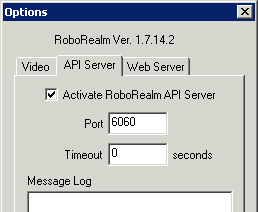
- Download and run RoboRealm if you have not already. Be sure to
have selected the "Active RoboRealm API Server" checkbox in the Options Dialog. This ensures that the
API server is running which is needed for the MSRS interface.
- If you have not already done so download and install Microsoft Robotics Studio 1.5 in C:\
- Download the 2008 Express or 2010 Express R3 or RDS 4 Beta 2 or MSRDS 4 (latest) of the RoboRealm MSRS interface code.
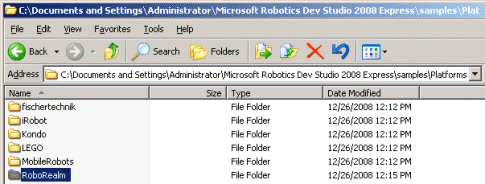
- Unzip into C:\Documents and Settings\Administrator\Microsoft Robotics Dev Studio 2008 R3\samples\Platforms
or C:\Users\Administrator\Microsoft Robotics Dev Studio 4 Beta 2\samples\Platforms for Win7 users.
- Copy Interface.manifest.xml (or RoboRealm.Interface.manifest.xml for Studio version) within the Platforms/RoboRealm folder to
C:\Documents and Settings\Administrator\Microsoft Robotics Dev Studio 2008 R3\samples\Config\
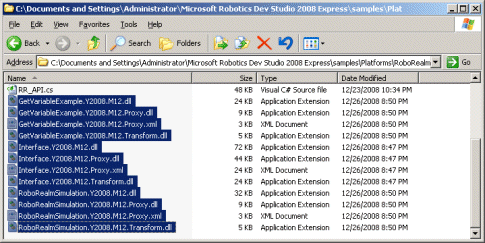
- Copy *.dll (all the dll files) within the Platforms/RoboRealm folder to
C:\Documents and Settings\Administrator\Microsoft Robotics Dev Studio 2008 R3\bin
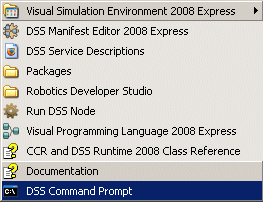
- Start MSRS by selecting your Start button, select Microsoft Robotics Developer Studio 2008 R3,
and then select DSS Command Prompt
- Copy *.xml into the Microsoft Robotics Developer Studio 2008 R3/samples/Config folder.
- This will open a command console within the MSRS folder. Within that console type
bin\dsshost /p:50000 /t:50001 /m:"samples\Config\Interface.manifest.xml" which will start
the MSRS system and register the RoboRealm interface.

- Enter the MSRS system by accessing the following url http://localhost:50000/roborealm using Internet Explorer (IE).
- You should now see a web interface to RoboRealm. Click on the Start button under the image to
start streaming the processed video from RoboRealm.
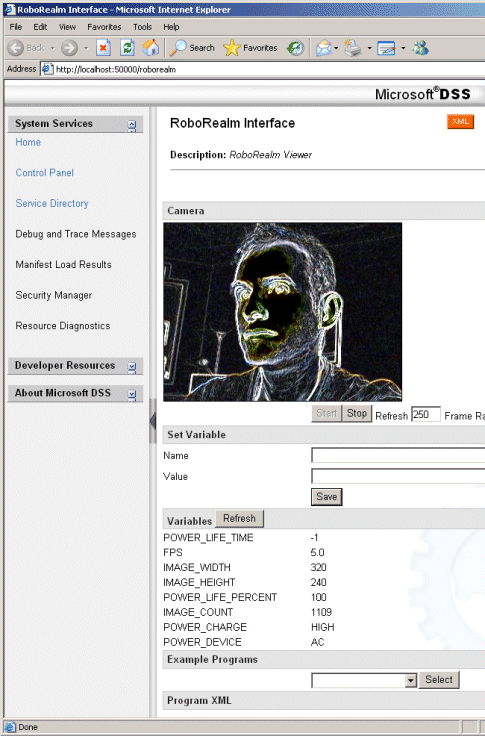
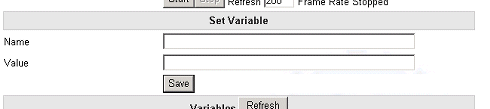
- Below the start buttons are the variable values. To change the variable values you can enter a new/existing
variable into the HTML text boxes and press save to make the changes. The current variables existing
within RoboRealm are listed at the bottom of the page.
- What's Next??
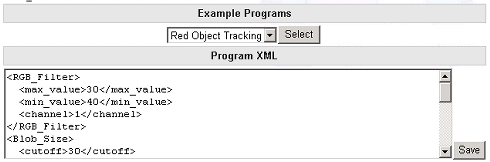
You can play with the examples programs provided to view different effects. You will notice the configuration xml in the textarea at the bottom of the page updating based on which example program you select. Try selecting the Red Object Tracking and change the <channel>1</channel> to 2. This changes the tracking to the color green.
- GetVariableExample
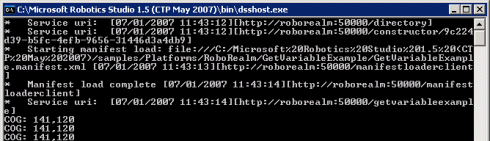
A sample orchestration program called GetVariableExample is included in the RoboRealm MSRS examples download code. This program shows you how to write other programs that would interface to RoboRealm to control its actions and get variables from RoboRealm via the MSRS RoboRealm interface code. This example in particular shows how to grab the COG_X and COG_Y variables from RoboRealm and write their values to the command console. Use this application as a basis for how to incorporate variable access within your own orchestration programs.
- SimulationExample
A sample orchestration program called RoboRealmSimulation is included in the RoboRealm MSRS example download code. This program shows you how to write a program that interfaces RoboRealm to the MSRS simulator to practice your vision procedures in a purely virtual world. This example in particular shows how to track a yellow cone, approach it and then turn away for a period of time. You will need the Simulation.robo file loaded into RoboRealm in order to run the simulation correctly.
For more information
Microsoft Robotics
| New Post |
| MSRS Related Forum Posts | Last post | Posts | Views |
| None |